
A free app I built myself. Give it a try.
You want to split a terminal pane, but pause to remember which key splits it left and right. Detaching a pane into another window is even harder to recall when you rarely use it. Opening the configuration file each time interrupts the work you were doing.
In my WezTerm configuration, Ctrl+U followed by period (.) opens a shortcut cheat sheet. It shows each key beside its description and lets you run the selected action. Learn the shortcuts you use regularly and look up the others when you need them.
Remember how to open the menu
A leader key is a prefix that tells WezTerm to wait for another key. Mine is Ctrl+U. Press Ctrl and U together, release them, then press period. This is a sequence, rather than a three-key combination held down at once.
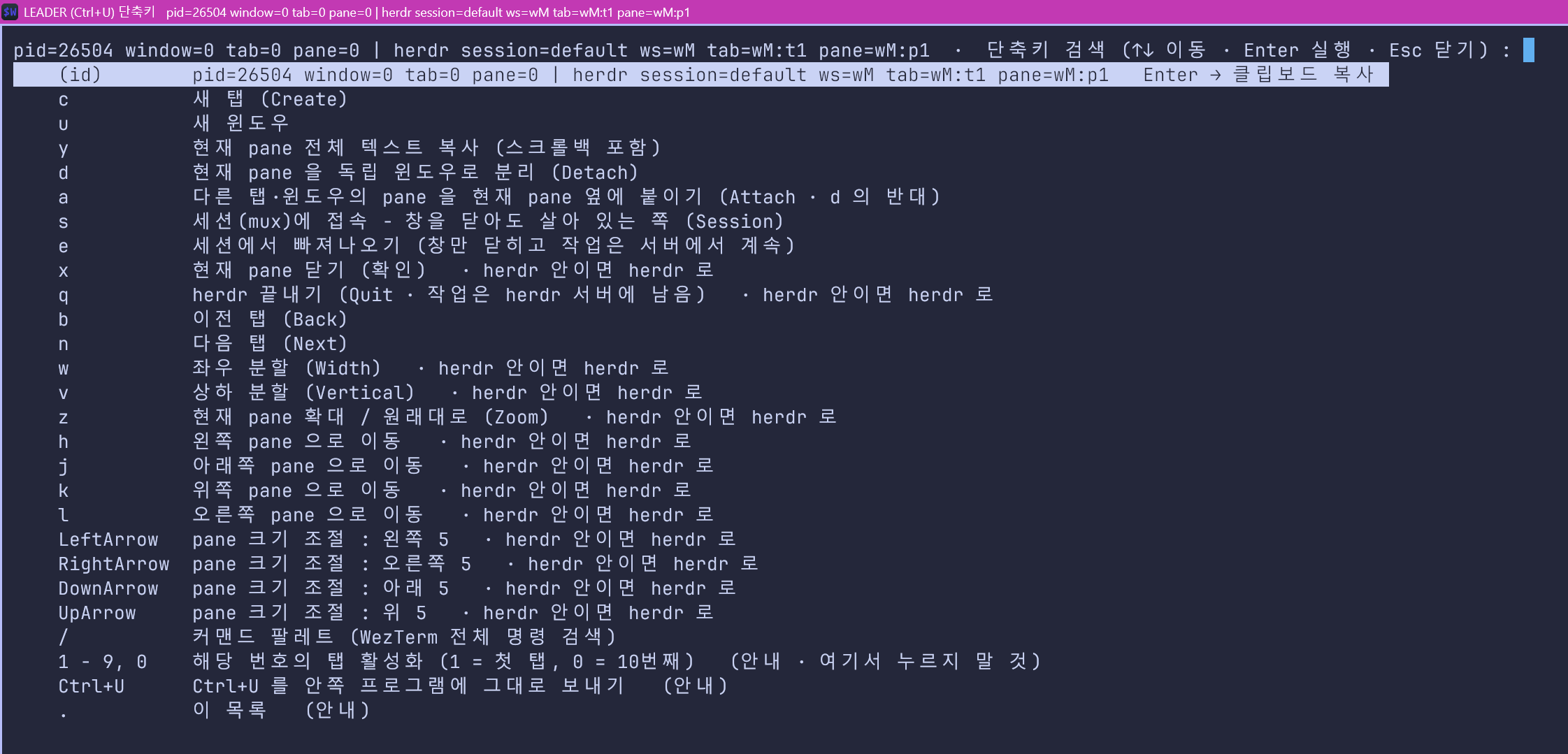
The screenshot shows my Korean menu. Open the full-size image if the text looks small. The labels come from the configuration file. You can translate them and keep the same key assignments.
The menu lists new tabs, detached panes, splits, navigation and resizing. The key appears on the left and its description on the right. Selecting an entry also runs the action. You do not have to close the help screen and retype the shortcut.
This menu comes from my configuration. It is not a default WezTerm shortcut. Another configuration may use a different leader key or have no such menu. The file linked below shows the basic menu. The screenshot also includes my later Zoom and Herdr additions.
Search for the action when you forget its key
After opening the menu, type words from the description. In this Korean menu, 분할 finds the split actions. Those labels also contain the English terms Width and Vertical. Use the up and down arrows to choose an entry, then Enter to run it.
- Press
Ctrl+Uand release it. - Press
.to open the menu. - Type a word from the action's description.
- Select the matching action with the arrow keys.
- Press Enter to run it, or Esc to close the menu.
Typing inside this menu filters the list. Seeing w beside a split action does not mean that pressing w there immediately runs it. Choose the row and press Enter. To use the shortcut directly, close the menu and press Ctrl+U, then w.
That gives you a way to learn the keys while working. Look up an action today, notice its shortcut, and try the shortcut next time. If you forget it again, the same menu is still available.
Give the keys a meaning you can recall
The descriptions include memory aids. c is Create for a new tab, and d is Detach for moving a pane to its own window. a is Attach for bringing another pane alongside the current one. w is Width for a left-right split, v is Vertical for a top-bottom split, and z is Zoom.
You do not need to memorize the whole list before using it. Start with the actions you keep looking up. The descriptions and keys stay together on screen. Each lookup gives you another chance to learn the association.
The first (id) row displays the current window, tab and pane identifiers. Select it and press Enter to copy them to the clipboard. Rows marked (안내), meaning information, are reminders rather than executable menu entries. To switch tabs by number, close the menu. Then press the leader followed by the tab number.
My screenshot also includes Herdr integration. Labels saying herdr 안이면 herdr로 mark actions forwarded to Herdr when running inside it. Otherwise, the ordinary WezTerm pane actions apply. Herdr-specific features require a separate installation and configuration.
Keep the menu with the configuration
The menu uses WezTerm's InputSelector. One list holds each key, its description and its action. Both the actual bindings and the help entries come from it. Editing them together helps keep the cheat sheet up to date.
You can inspect the complete .wezterm.lua configuration. Back up your existing configuration first. Review the shell paths and fonts for your PC before adopting it. The earlier article explains the implementation if you want to build your own version.
For now, remember Ctrl+U, then .. Open the menu and use it to find one action you need.

No comments:
Post a Comment